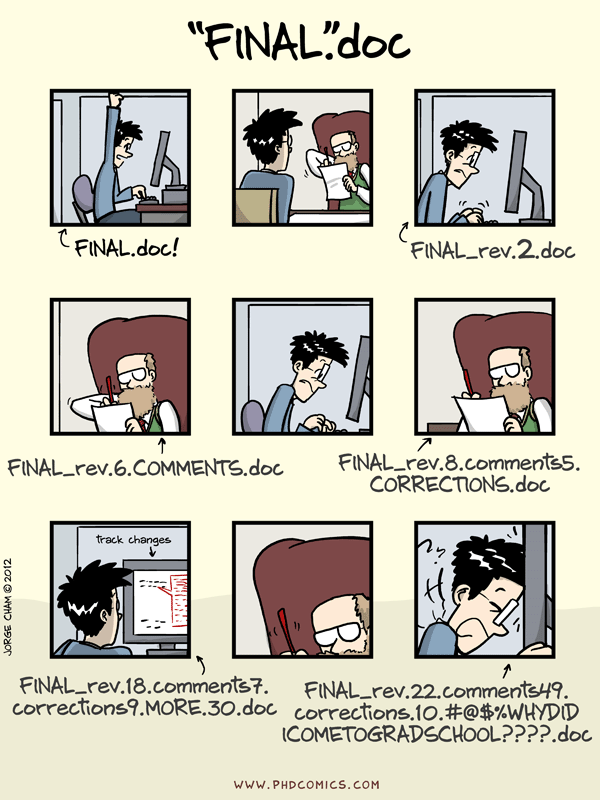
Image 1 of 1: ‘Comic: a PhD student sends "FINAL.doc" to their supervisor, but after several increasingly intense and frustrating rounds of comments and revisions they end up with a file named "FINAL_rev.22.comments49.corrections.10.#@$%WHYDIDCOMETOGRADSCHOOL????.doc"’
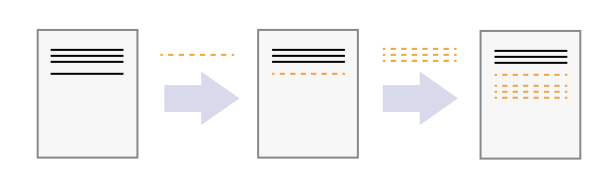
Image 1 of 1: ‘A diagram demonstrating how a single document grows as the result of sequential changes’
Figure 3
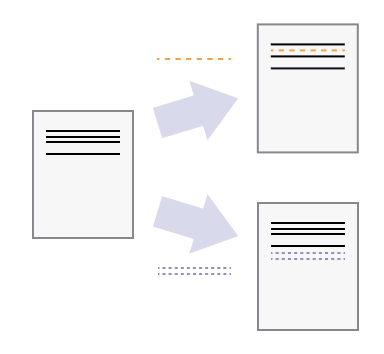
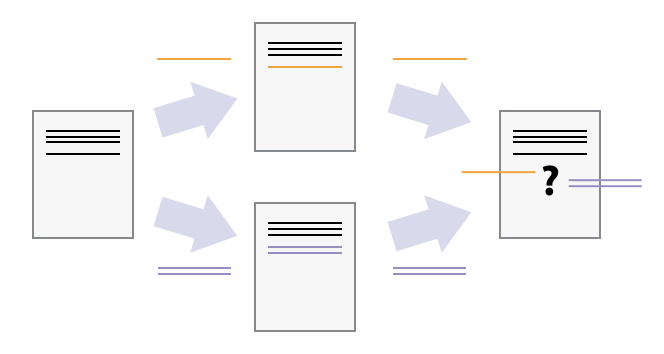
Image 1 of 1: ‘A diagram with one source document that has been modified in two different ways to produce two different versions of the document’
Figure 4
Image 1 of 1: ‘A diagram that shows the merging of two different document versions into one document that contains all of the changes from both versions’
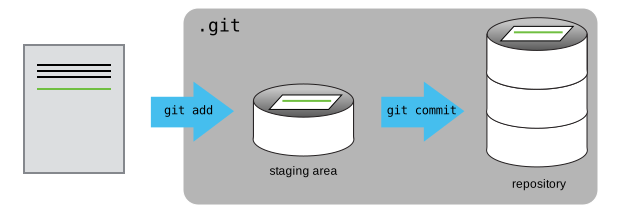
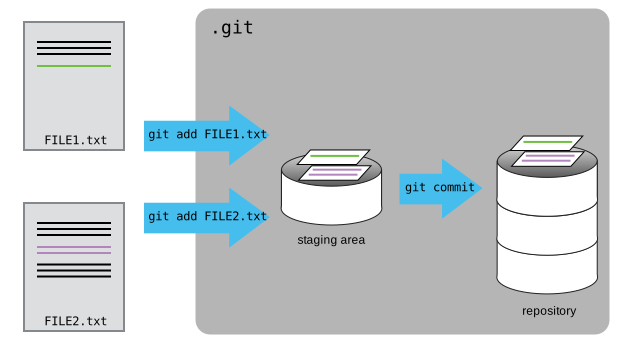
Image 1 of 1: ‘A diagram showing how "git add" registers changes in the staging area, while "git commit" moves changes from the staging area to the repository’
Figure 2
Image 1 of 1: ‘A diagram showing two documents being separately staged using git add, before being combined into one commit using git commit’
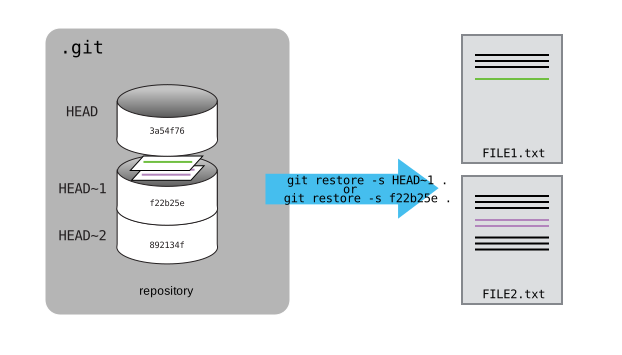
Image 1 of 1: ‘A diagram showing how git restore can be used to restore the previous version of two files’
Figure 2
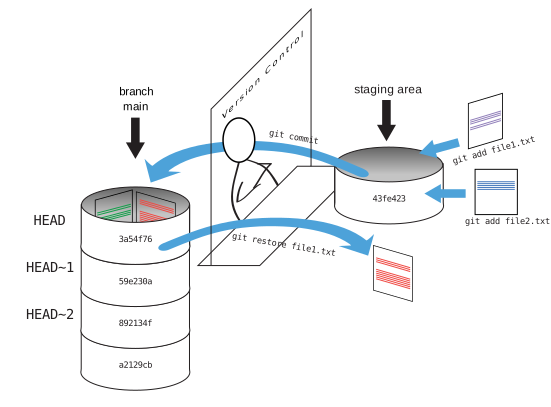
Image 1 of 1: ‘A diagram showing the entire git workflow: local changes are staged using git add, applied to the local repository using git commit, and can be restored from the repository using git checkout’
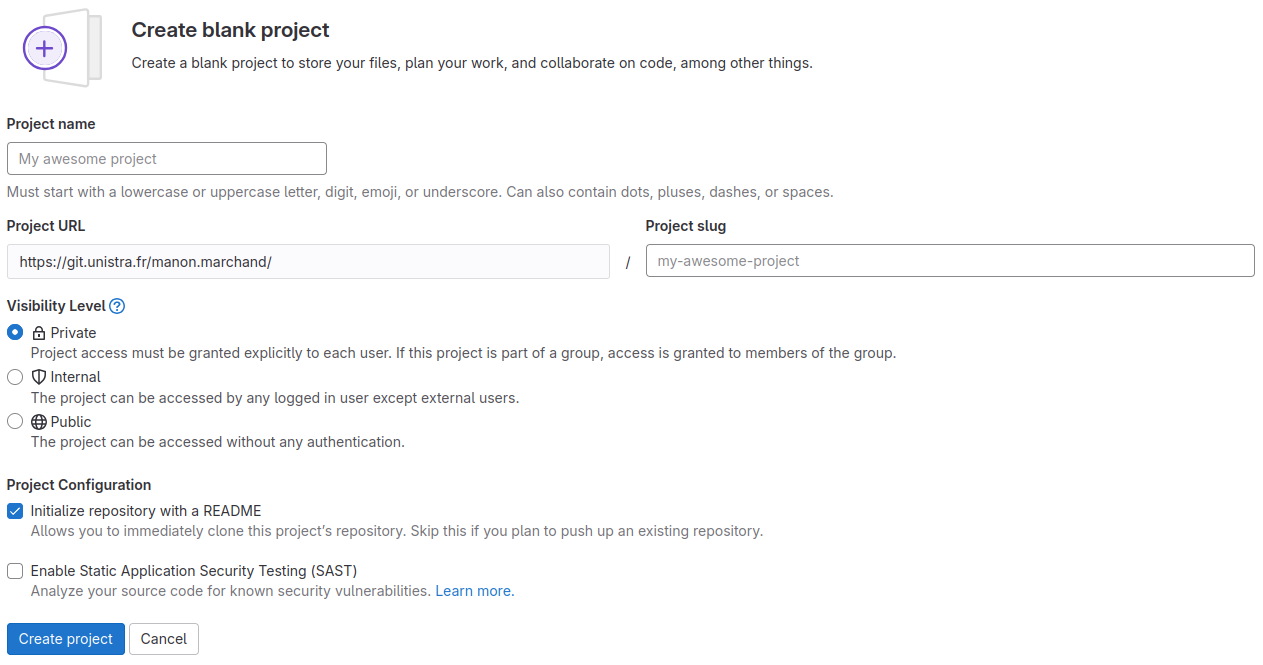
Image 1 of 1: ‘Create blank project form with text input fields labeled “Project name”, “Project URL”, “Project slug”, “Project deployment target (optional)”, a radio button element labeled “Visibility Level” with options “Private” and “Public”, and two checkboxes labeled “Initialize repository with a README” and “Enable Static Application Security Testing (SAST)”.’
Create blank project form
Figure 2
Image 1 of 1: ‘A diagram showing how "git add" registers changes in the staging area, while "git commit" moves changes from the staging area to the repository’
Figure 3
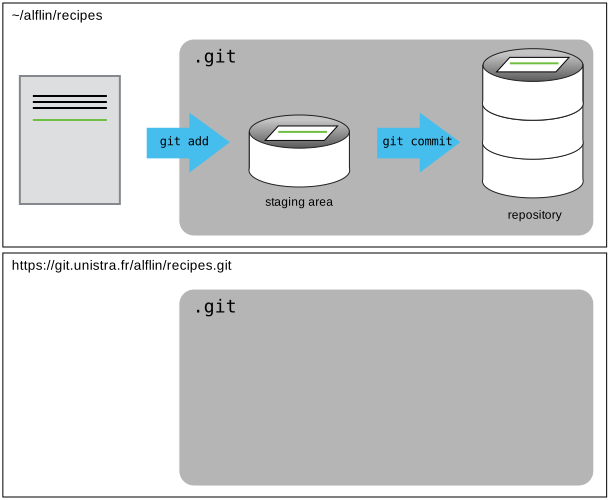
Image 1 of 1: ‘A diagram illustrating how the GitLab "recipes" repository is also a git repository like our local repository, but that it is currently empty’
Figure 4
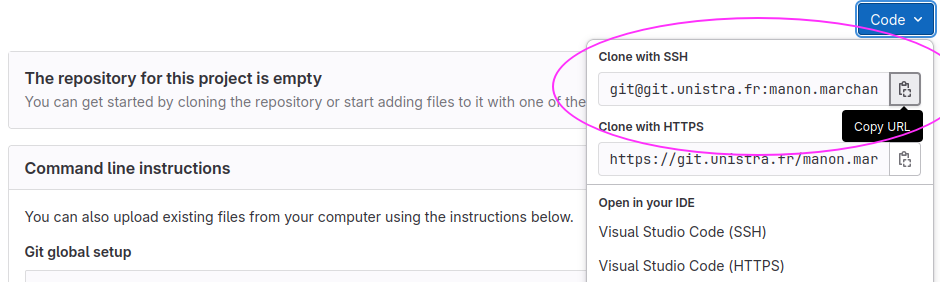
Image 1 of 1: ‘Clicking the "Copy to Clipboard" button on GitLab to obtain the repository's URL’
Figure 5
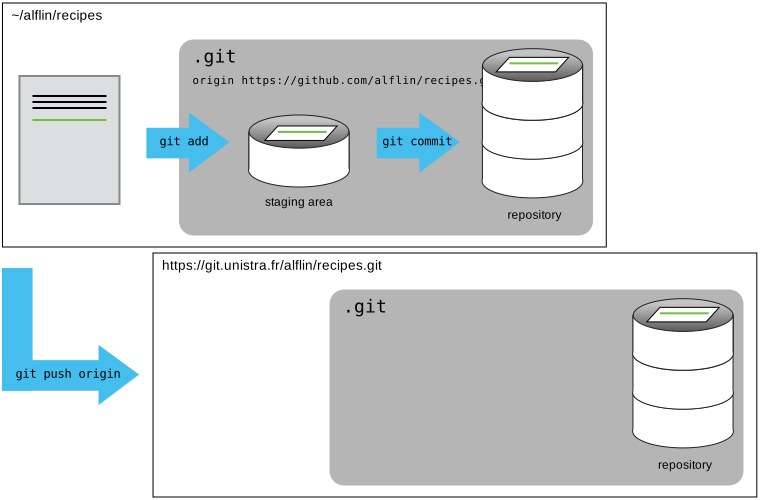
Image 1 of 1: ‘A diagram showing how "git push origin" will push changes from the local repository to the remote, making the remote repository an exact copy of the local repository.’
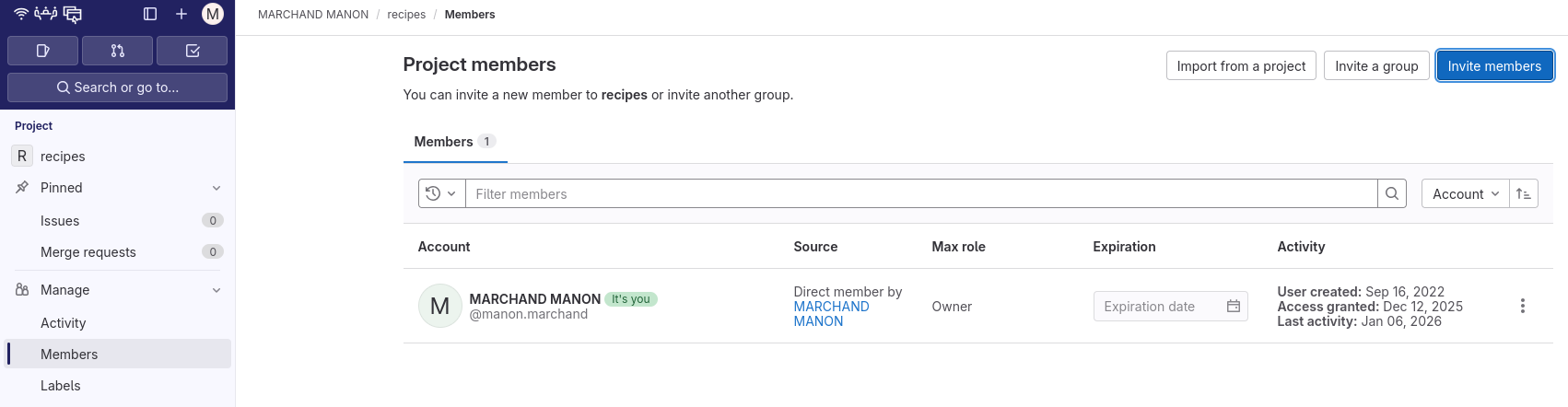
Image 1 of 1: ‘A screenshot of the GitLab Members settings page, which is accessed by clicking "Manage" then "Members"’
Figure 2
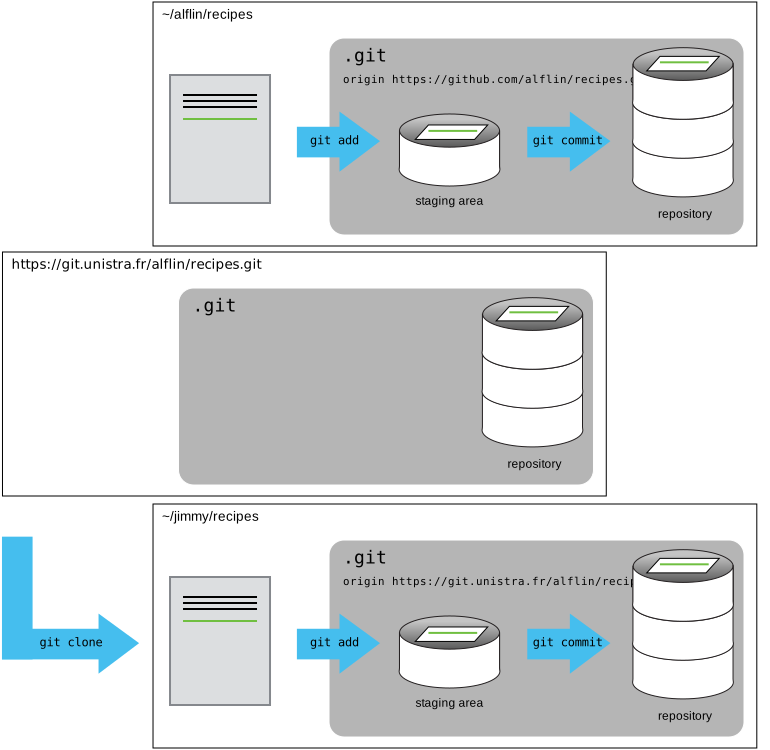
Image 1 of 1: ‘A diagram showing that "git clone" can create a copy of a remote GitHub repository, allowing a second person to create their own local repository that they can make changes to.’